Establishing Data Trustworthiness through Quality Measures
Prakash serves as the collaborative platform for users to unite around data interactions. It functions as the hub for refining asset discoverability. By employing data quality measures, you ensure the dependability of these assets.
Furthermore, Prakash empowers enterprises to focus their metric checks and validation rules exclusively on the most crucial tables. This strategic approach enables organizations to leverage the versatility offered by Prakash, spanning the entire spectrum of data observability and data quality requirements.
This segment will lead you through the process of setting up and executing Data Quality pipelines utilizing Prakash pre-built tests.
Data Quality Checks –:
Prakash helps you get ahead of data issues by automatically detecting them as soon as they appear in your data and before anyone else is impacted.
In the realm of Data Quality Checks:
Prakash takes proactive measures to anticipate and intercept data discrepancies, automatically identifying them the moment they manifest within your data ecosystem. This preemptive approach ensures timely detection, averting any potential impact before it reaches downstream users.
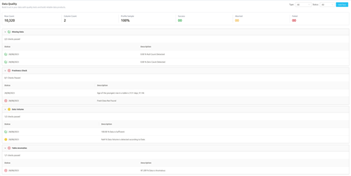
Within the domain of data quality, Prakash facilitates a range of essential checks :
-
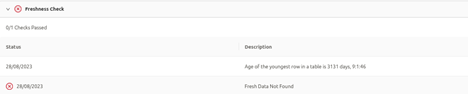
Freshness Check : Data freshness check refers to the process of verifying the timeliness and relevance of data to ensure that it is up-to-date and accurate. It is an important aspect of data quality management that involves monitoring the data to ensure that it remains relevant and useful for the intended purpose. Because, If your business thinks it’s drawing insights from the most recent data, but really it’s looking at data that’s a month old, there’s going to be problems.
-
Missing Data Check : Prakash meticulously inspects your data for any gaps or missing values, maintaining the integrity of your datasets. Missing value always mislead the business insights. It will always create the noise in the data, so overcoming which is very necessary. That’s way here is the approach of how can we overcome missing values from the data.

-
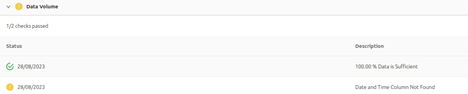
Data Volume Check : Prakash quantitatively assesses the volume of your data, ensuring its consistency and identifying any unexpected deviations. Data volume can be configured with the basis of size of the data received on particular date. Here comes the seasonality and trends to keep track of. Because In some season or weekends may affect the data arrival and which should not lead to misguided volume percentage.
-
Table Anomalies : Prakash conducts thorough examinations of your tables, promptly identifying and highlighting any irregularities or anomalies. Table anomalies, or anomaly detection, include duplicate data, changes in the schema of the table, as well as other significant changes inside the raw data, such as changes in continuous distributions, categorical values, time duration’s, or even relationships between columns.

By employing these comprehensive features, Prakash empowers you to uphold data integrity and reliability, safeguarding your data-driven processes from disruptions and inaccuracies.
Validation Checks –:
Test Suite
Test Suites are logical container allowing you to group related Test Cases together from different tables and columns.
Test Definition
Test Definitions are generic tests definition elements specific to a test such as:
- test name
- column name
- data type
Test Cases
Test Cases specify a Test Definition. It will define what condition a test must meet to be successful (e.g. max=n, etc.). One Test Definition can be linked to multiple Test Cases.
The process of generating Test Cases operates on two distinct tiers:
-
Table Level: At this tier, Test Cases are formulated to address overarching assessments pertaining to entire tables. These cases ensure that data on a table-wide scale adheres to defined standards.
-
Column Level: This tier involves creating Test Cases that hone in on individual columns within a table. These cases scrutinize specific attributes, offering a more granular evaluation of data quality and compliance.
Adding Test Cases to an Entity
Tests cases are actual test that will be run and executed against your entity. This is where you will define the execution time and logic of these tests.
Note: you will need to make sure you have the right permission in Prakash to create a test.
Step 1 : Creating a Test Case
-
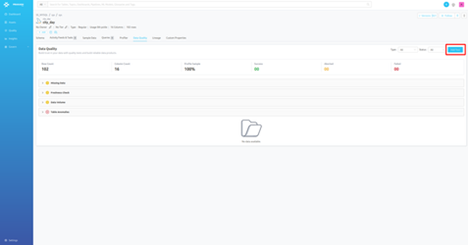
Navigate to the entity you want to add a test (we currently support quality test only for database entity). Go to Profiler & Data Quality tab. From there, click on the Add Test button in the upper right corner and select the type of test you want to implement.
-
Another way to Add test is click on left panel QUALITY table and then click on + ADD.
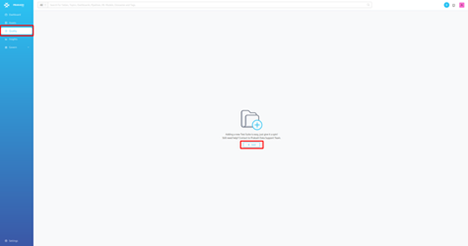
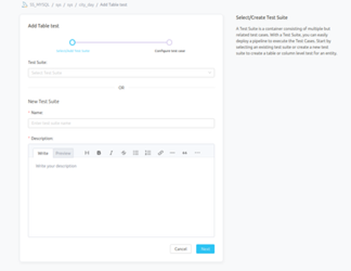
Step 2 : Add Name and Description
- Provide a Name and Description for your Service. Prakash uniquely identifies Services by their Test Suite Name and Description. Add Name and Description then click on NEXT.
Note that when the Name and Description is set, it cannot be changed.
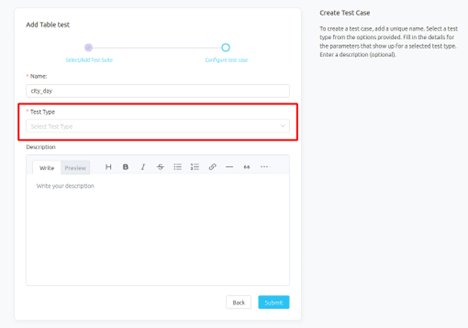
Step 3 : Select the Test Type
- Select the Test type of test you want to run and set the parameters (if any) for your test case. Give it a name and then submit it.
Note: if you have a profiler workflow running, you will be able to visualize some context around your column or table data.
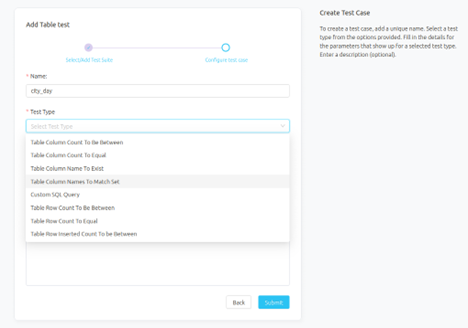
- set the parameters (if any) for your test case.
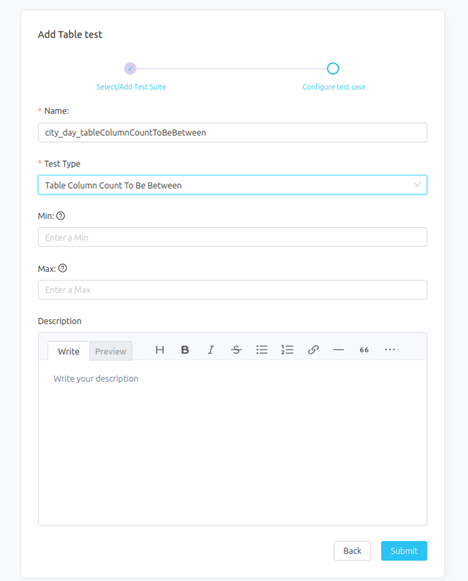
Table Level Tests :–
Tests applied on top of a Table. Here is the list of all table tests :
- Table Row Count to Equal
- Table Row Count to be Between
- Table Column Count to Equal
- Table Column Count to be Between
- Table Column Name to Exist
- Table Column to Match Set
- Table Custom SQL Test
- Table Row Inserted Count To Be Between
Table Row Count to Equal
- Validate the total row count in the table is equal to the given value.
Properties :
- value: Expected number of rows.
Behavior :
| Condition |
Status |
| value match the number of rows in the table |
Success ✅ |
| value does not match the number of rows in the table |
Failed ❌ |
Table Row Count to be Between
- Validate the total row count is within a given range of values.
Properties:
- minValue: Lower bound of the interval. If informed, the number of rows should be bigger than this number.
- maxValue: Upper bound of the interval. If informed, the number of rows should be lower than this number.
Any of those two need to be informed.
Behavior
| Condition |
Status |
| The number of rows in the table is between minValue and maxValue |
Success ✅ |
| The number of rows in the table is not between minValue and maxValue |
Failed ❌ |
Table Column Count to Equal
- Validate that the number of columns in a table is equal to a given value.
Properties
- columnCount: Expected number of columns.
Behavior
| Condition |
Status |
| columnCount matches the number of column in the table |
Success ✅ |
| columnCount does not matches the number of column in the table |
Failed ❌ |
Table Column Count to be Between
- Validate the total column count is within a given range of values.
Properties
-
minColValue (integer) : Expected number of columns should be greater than or equal to {minValue}. If minValue is not included, maxValue is treated as upperBound and there will be no minimum number of column.
-
maxColValue (integer) : Expected number of columns should be less than or equal to {maxValue}. If maxValue is not included, minValue is treated as lowerBound and there will be no maximum number of column.
Behavior
| Condition |
Status |
| The number of rows in the table is between minValue and maxValue |
Success ✅ |
| The number of rows in the table is not between minValue and maxValue |
Failed ❌ |
Table Column Name To Exist
- Validate the table columns within given values.
Properties
columnName (string): Expected column of the table to exist.
Behavior
| Condition |
Status |
| columnName matches the columns of the table |
Success ✅ |
| columnName does not matches the columns of the table |
Failed ❌ |
Table Column to Match Set
- Validate a list of table columns matches a set of values.
Properties
Behavior
| Condition |
Status |
| [ordered=False] columnNames matches the list of column names in the table regardless of the order |
Success ✅ |
| [ordered=True] columnNames matches the list of column names in the table in the corresponding order (e.g. [“a”,”b”] == [“a”,”b”] |
success ✅ |
| [ordered=fALSE] columnNames does no match the list of column names in the table regardless of the order |
Failed ❌ |
| ordered=True] columnNames does no match the list of column names in the table and/or the corresponding order (e.g. [“a”,”b”] != [“b”,”a”] |
Failed ❌ |
Table Custom SQL Query Test
Write you own SQL test. The test will pass if the following condition is met:
- The query result return 0 row
Properties
- sqlExpression: SQL expression
Behavior
| Condition |
Status |
| sqlExpression returns 0 row |
Success ✅ |
| sqlExpression returns 1 or more rows |
Failed ❌ |
Table Row Inserted Count To Be Between
Validate the number of rows inserted for the defined period is between the expected range.
Properties
- Min Row Count: Lower bound
- Max Row Count: Upper bound
- Column Name: The name of the column used to apply the range filter
- Range Type: One of HOUR, DAY, MONTH, YEAR
- Interval: The range interval (e.g. 1,2,3,4,5, etc)
Behavior
| Condition |
Status |
| Number of rows is between Min Row Count and Max Row Count |
Success ✅ |
| Number of rows is not between Min Row Count and `Max Row Count |
Failed ❌ |
Column Level Tests :
Tests applied on top of Column metrics. Here is the list of all column tests:
- Column Values To Be Unique
- Column Values to Be Not Null
- Column Values to Match Regex
- Column Values to Not Match Regex
- Column Values To be In Set
- Column Values To Be Not In Set
- Column Values To Be Between
- Column Values Missing Count To Be Equal
- Column Values Length To Be Between
- Column Value Max To Be Between
- Column Value Min To Be Between
- Column Value Mean To Be Between
- Column Value Median To Be Between
- Column Values Sum To Be Between
- Column Values Standard Deviation To Be Between
Column Values to Be Unique
Makes sure that there are no duplicate values in a given column.
Properties
- columnValuesToBeUnique: To be set as true.
Behavior
| Condition |
Status |
| column values are unique |
Success ✅ |
| column values are not unique |
Failed ❌ |
Column Values to Be Not Null
Validates that there are no null values in the column.
Properties
- columnValuesToBeNotNull: To be set as true.
Behavior
| Condition |
Status |
| No NULL values are present in the column |
Success ✅ |
| 1 or more NULL values are present in the column |
Failed ❌ |
Column Values to Match Regex
This test allows us to specify how many values in a column we expect that will match a certain regex expression.
- Redshift
- Postgres
- oracle
- MySQL
- MariaDB
- SQLite
- Click house
- Snowflake
The other databases will fall back to the LIKE expression
Properties
- regex: expression to match a regex pattern. E.g., [a-zA-Z0-9]{5}.
Behavior
| Condition |
Status |
| 0 column value match regex |
Success ✅ |
| 1 or more column values match regex |
Failed ❌ |
Column Values to Be in Set
Validate values form a set are present in a column.
Properties
- allowedValues: List of allowed strings or numbers.
Behavior
| Condition |
Status |
| 1 or more values from allowedValues is found in the column |
Success ✅ |
| 0 value from allowedValues is found in the column |
Failed ❌ |
Column Values to Be Not In Set
Validate that there are no values in a column in a set of forbidden values.
Properties
- forbiddenValues: List of forbidden strings or numbers.
Behavior
| Condition |
Status |
| 0 value from forbiddenValues is found in the column |
Success ✅ |
| 1 or more values from forbiddenValues is found in the column |
Failed ❌ |
Column Values to Be Between
Validate that the values of a column are within a given range.
Only supports numerical types.
Properties
-
minValue: Lower bound of the interval. If informed, the column values should be bigger than this number.
-
maxValue: Upper bound of the interval. If informed, the column values should be lower than this number.
Any of those two need to be informed.
Behavior
| Condition |
Status |
| value is between minValue and maxValue |
Success ✅ |
| value is greater than minValue if only minValue is specified |
Success ✅ |
| value is less than maxValue if only maxValue is specified |
Success ✅ |
| value is not between minValue and maxValue |
Failed ❌ |
| value is less than minValue if only minValue is specified |
Failed ❌ |
| value is greater than maxValue if only maxValue is specified |
Failed ❌ |
Column Values Missing Count to Be Equal
Validates that the number of missing values matches a given number.
Missing values are the sum of nulls, plus the sum of values in a given list which we need to consider as missing data. A clear example of that would be NA or N/A.
Properties
Behavior
| Condition |
Status |
| Number of missing value is equal to missingCountValue |
Success ✅ |
| Number of missing value is not equal to missingCountValue |
Failed ❌ |
Column Values Lengths to Be Between
Validates that the lengths of the strings in a column are within a given range.
Only supports concatenable types.
Properties
- minLength: Lower bound of the interval. If informed, the string length should be bigger than this number.
- maxLength: Upper bound of the interval. If informed, the string length should be lower than this number.
Any of those two need to be informed.
Behavior
| Condition |
Status |
| value length is between minLength and maxLength |
Success ✅ |
| value length is greater than minLength if only minLength is specified |
Success ✅ |
| value length is less than maxLength if only maxLength is specified |
Success ✅ |
| value length is not between minLength and maxLength |
Failed ❌ |
| value length is less than minLength if only minLength is specified |
Failed ❌ |
| value length is greater than maxLength if only maxLength is specified |
Failed ❌ |
Column Value Max to Be Between
Validate the maximum value of a column is between a specific range.
Only supports numerical types.
Properties
Behavior
| Condition |
Status |
| column max value is between minValueForMaxInCol and maxValueForMaxInCol |
Success ✅ |
| column max value is greater than minValueForMaxInCol if only minValueForMaxInCol is specified |
Success ✅ |
| column max value is less than maxValueForMaxInCol if only maxValueForMaxInCol is specified |
Success ✅ |
| column max value is not between minValueForMaxInCol and maxValueForMaxInCol |
Failed❌ |
| column max value is less than minValueForMaxInCol if only minValueForMaxInCol is specified |
Failed❌ |
| column max value is greater than maxValueForMaxInCol if only maxValueForMaxInCol is specified |
Failed ❌ |
Column Value Min to Be Between
Validate the minimum value of a column is between a specific range
Only supports numerical types.
Properties
- minValueForMinInCol: lower bound
- maxValueForMinInCol: upper bound
Behavior
| Condition |
Status |
| column min value is between minValueForMinInCol and maxValueForMinInCol |
Success ✅ |
| column min value is greater than minValueForMinInCol if only minValueForMinInCol is specified |
Success ✅ |
| column min value is less than maxValueForMinInCol if only maxValueForMinInCol is specified |
Success ✅ |
| column min value is not between minValueForMinInCol and maxValueForMinInCol |
Failed ❌ |
| column min value is less than minValueForMinInCol if only minValueForMinInCol is specified |
Failed❌ |
| column min value is greater than maxValueForMinInCol if only maxValueForMinInCol is specified |
Failed ❌ |
Column Value Mean to Be Between
Validate the mean of a column is between a specific range
Only supports numerical types.
Properties
- minValueForMeanInCol: lower bound
- maxValueForMeanInCol: upper bound
Behavior
| Condition |
Status |
| column mean value is between minValueForMeanInCol and maxValueForMeanInCol |
Success ✅ |
| column mean value is greater than minValueForMeanInCol if only minValueForMeanInCol is specified |
Success ✅ |
| column mean value is less than maxValueForMeanInCol if only maxValueForMeanInCol is specified |
Success ✅ |
| column mean value is not between minValueForMeanInCol and maxValueForMeanInCol |
Failed ❌ |
| column mean value is less than minValueForMeanInCol if only minValueForMeanInCol is specified |
Failed ❌ |
| column mean value is greater than maxValueForMeanInCol if only maxValueForMeanInCol is specified |
Failed ❌ |
Validate the median of a column is between a specific range
Only supports numerical types.
Properties
- minValueForMedianInCol: lower bound
- maxValueForMedianInCol: upper bound
Behavior
| Condition |
Status |
| column median value is between minValueForMedianInCol and maxValueForMedianInCol |
Success ✅ |
| column median value is greater than minValueForMedianInCol if only minValueForMedianInCol is specified |
Success ✅ |
| column median value is less than maxValueForMedianInCol if only maxValueForMedianInCol is specified |
Success ✅ |
| column median value is not between minValueForMedianInCol and maxValueForMedianInCol |
Failed ❌ |
| column median value is less than minValueForMedianInCol if only minValueForMedianInCol is specified |
Failed ❌ |
| column median value is greater than maxValueForMedianInCol if only maxValueForMedianInCol is specified |
Failed ❌ |
Column Values Sum to Be Between
Validate the sum of a column is between a specific range
Only supports numerical types.
Properties
- minValueForColSum: lower bound
- maxValueForColSum: upper bound
Behavior
| Condition |
Status |
| Sum of the column values is between minValueForColSum and maxValueForColSum |
Success ✅ |
| Sum of the column values is greater than minValueForColSum if only minValueForColSum is specified |
Success ✅ |
| Sum of the column values is less than maxValueForColSum if only maxValueForColSum is specified |
Success ✅ |
| Sum of the column values is not between minValueForColSum and maxValueForColSum |
Failed ❌ |
| Sum of the column values is less than minValueForColSum if only minValueForColSum is specified |
Failed ❌ |
| Sum of the column values is greater than maxValueForColSum if only maxValueForColSum is specified |
Failed ❌ |
Column Values Standard Deviation to Be Between
Validate the standard deviation of a column is between a specific range
Only supports numerical types.
Properties
- minValueForStdDevInCol: lower bound
- minValueForStdDevInCol: upper bound
Behavior
| Condition |
Status |
| column values standard deviation is between minValueForStdDevInCol and minValueForStdDevInCol |
Success ✅ |
| column values standard deviation is greater than minValueForStdDevInCol if only minValueForStdDevInCol is specified |
Success ✅ |
| column values standard deviation is less than minValueForStdDevInCol if only minValueForStdDevInCol is specified |
Success ✅ |
| column values standard deviation is not between minValueForStdDevInCol and minValueForStdDevInCol |
Failed ❌ |
| column values standard deviation is less than minValueForStdDevInCol if only minValueForStdDevInCol is specified |
Failed ❌ |
| column values standard deviation is greater than minValueForStdDevInCol if only minValueForStdDevInCol is specified |
Failed ❌ |