Admins can define the Key Performance Indicators (KPIs) and set goals within Prakash to work towards better documentation, ownership, and tiering. These goals are based on data assets and driven to achieve targets within a specified timeframe.
KPI Categories
Prakash currently supports the following KPI Categories.
Completed Description: This KPI measures the description coverage of your data assets in Prakash. You can choose an absolute (number) or a relative (percentage) value.
Completed Ownership: This KPI measures the ownership coverage of your data assets in Prakash. You can choose an absolute (number) or a relative (percentage) value.
How to Add KPIs
You can track the existing documentation and ownership coverage and work towards a better data culture by setting up data insights. Configure the KPIs and set goals at an organizational level to encourage your team to get your data to a better state.
-
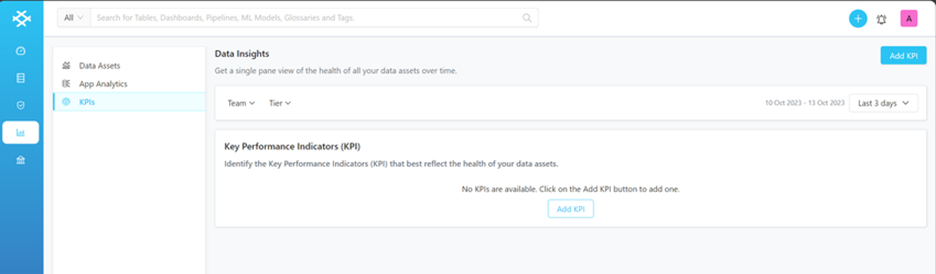
Go to Insights and click on Add KPI.
-
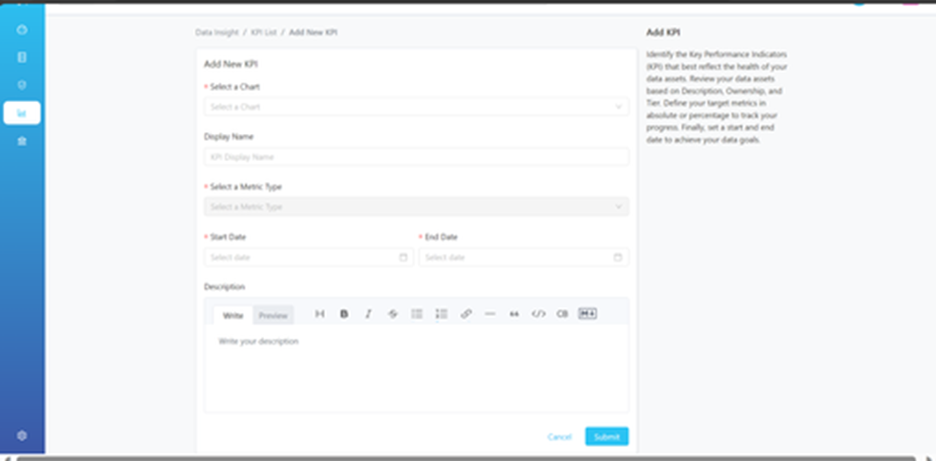
Enter the following details on the KPI configuration page:
o Select a Chart among the available chart options.
o Enter a Display Name.
o Select the Metric Type, i.e., Percentage or Number. You can choose an absolute number or define a relative percentage of the data assets to be covered.
o Select a Start and End Date by which to achieve the KPI target.
o Add a Description to define what the KPI is about.
-
Click on Submit.
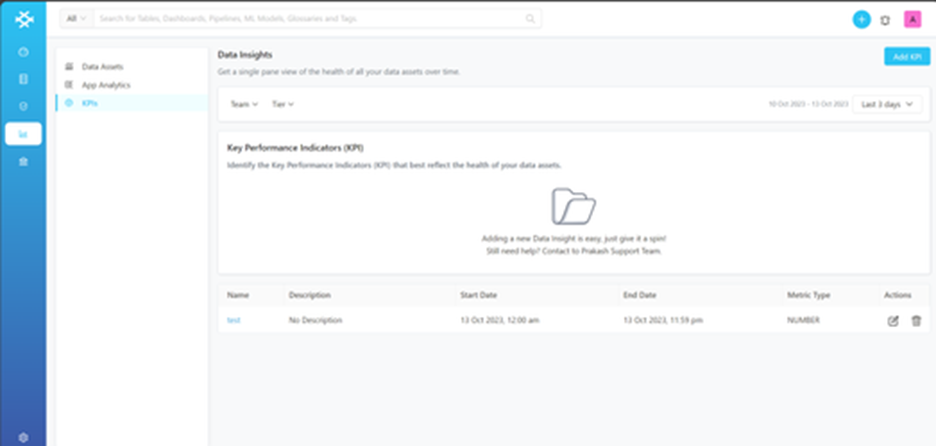
The line graph represents the progress made on a daily basis. It also displays the days left to achieve the target and the coverage so far.