In this section, we provide guides and references to use the Glue connector.
Step 1 –: Create New Service
- Create New Service to click on + ADD .
- The first step is to ingest the metadata from your sources. To do that, you first need to create a Service connection first.
- This Service will be the bridge between Prakash and your source system
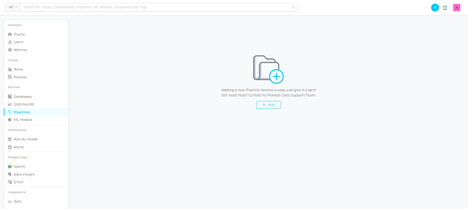
The Add New service form should look something like this.
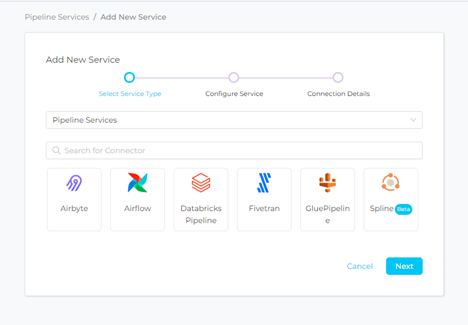
Step 2 –: Select Glue Pipeline Service Type
Select Glue Pipeline as the Service type and click NEXT.
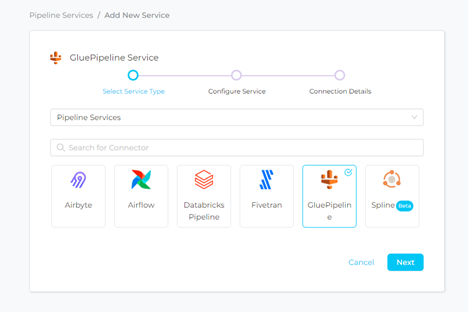
Step 3 –: Name and Describe Your Service
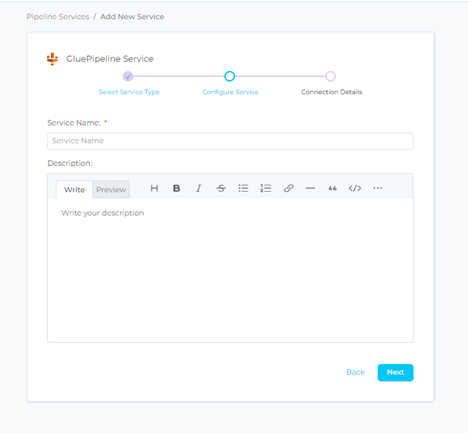
Provide a name and description for your Service.
Service Name:-
- Prakash uniquely identifies Services by their Service Name. Provide a name that distinguishes your deployment from other Services, including the other Glue Pipeline Services that you might be ingesting metadata from.
Note that when the name is set, it cannot be change.
Step 4 –: Configure the Service Connection
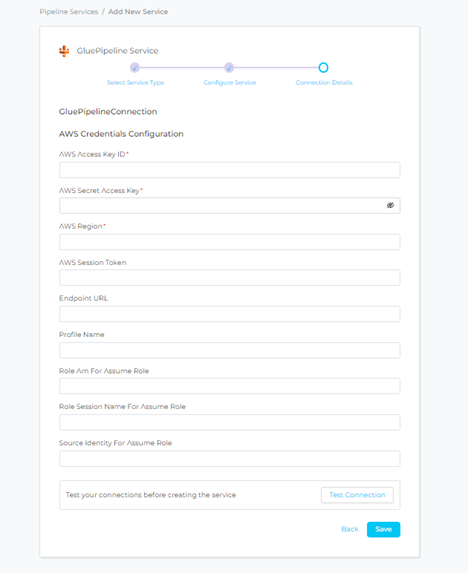
- in this step, we will configure the connection settings required for Glue
- Please follow the instructions below to properly configure the Service to read from your sources. You will also find helper documentation on the right-hand side panel in the UI
Connection Details: -
- AWS Access Key ID: Enter your secure access key ID for your Quicksight connection. The specified key ID should be authorized to read all databases you want to include in the metadata ingestion workflow.
- AWS Secret Access Key: Enter the Secret Access Key (the passcode key pair to the key ID from above).
- AWS Region: Enter the location of the amazon cluster that your data and account are associated with.
- AWS Session Token (optional): The AWS session token is an optional parameter. If you want, enter the details of your temporary session token.
- Endpoint URL (optional): Your Glue connector will automatically determine the AWS endpoint URL based on the region. You may override this behaviour by entering a value to the endpoint URL.
- Profile Name: A named profile is a collection of settings and credentials that you can apply to an AWS CLI command.
- Assume Role ARN: Typically, you use AssumeRole within your account or for cross-account access. In this field you’ll set the ARN (Amazon Resource Name) of the policy of the other account.
- Assume Role Session Name: The source identity specified by the principal that is calling the AssumeRole operation.
- Database Name: In Prakash, the Database Service hierarchy works as follows:
Database Service > Database > Schema > Table
Step 5 –: Check Test Connection
Once the credentials have been added, click on TEST CONNECTION To Check Credentials is valid or not.
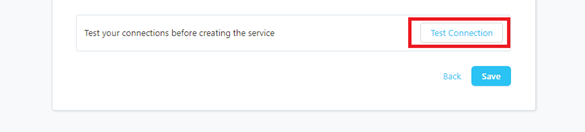
If Test Connection Successful after that click on SAVE and then configure Metadata Ingestion.
Step 6 –: Configure Metadata Ingestion
In this step we will configure the metadata ingestion pipeline, Please follow the instructions below.
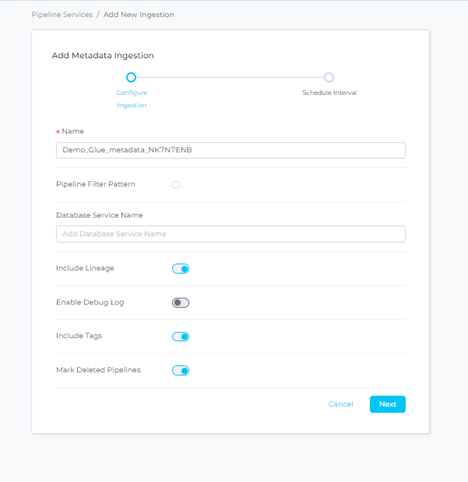
- Pipeline Filter Pattern: Note that all of them support regex as include or exclude.
- Database Service Name: You can enter a list of Database Services that are hosting the inlet and the outlet tables.
- Include Tags: Set the ‘Include Tags’ toggle to control whether to include tags in metadata ingestion.
- Mark Deleted Pipeline: Set the ‘Mark Deleted Dashboards’ toggle to flag Pipeline as soft-deleted if they are not present anymore in the source system.
- Include lineage: Set the ‘Include Tags’ toggle to control whether to include tags as part of metadata ingestion.
- Enable Debug log: Set the Enable Debug Log toggle to set the default log level to debug.
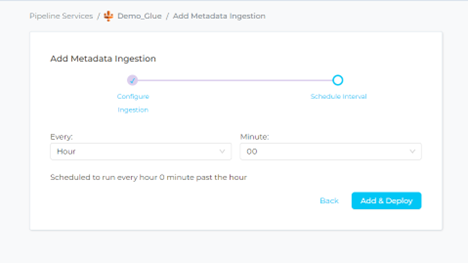
Step 7 –: Schedule the Ingestion and Deploy
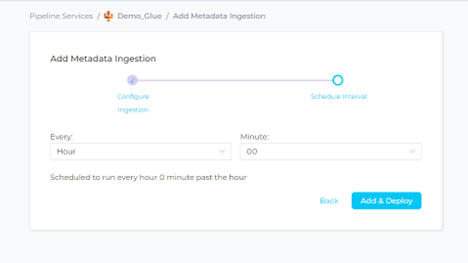
- Scheduling can be set up at an hourly, daily, weekly, or manual cadence. The timezone is in UTC. Select a Start Date to schedule for ingestion. It is optional to add an End Date
- Review your configuration settings. If they match what you intended, click DEPLOY to create the service and schedule metadata ingestion
- If something doesn’t look right, click the BACK button to return to the appropriate step and change the settings as needed.
- After configuring the workflow, you can click on DEPLOY to create the pipeline.
Step 9 –: View the Ingestion Pipeline
Once the workflow has been successfully deployed, you can view the Ingestion Pipeline running from the Service Page